















 |
| Updated to version 3.0
Special thanks to Ilias Tselios, the original author of ITXD Light Controls for X Plane 11. Their work was the primary inspiration for ITC Light Controls, and without their work, ITC would not exist.
---------------------------------
Check out TheFlyingScotsman's X Plane channel running ITC:
See ITC in action on the ITC channel:
A lighting and atmosphere Lua script for X Plane 12.
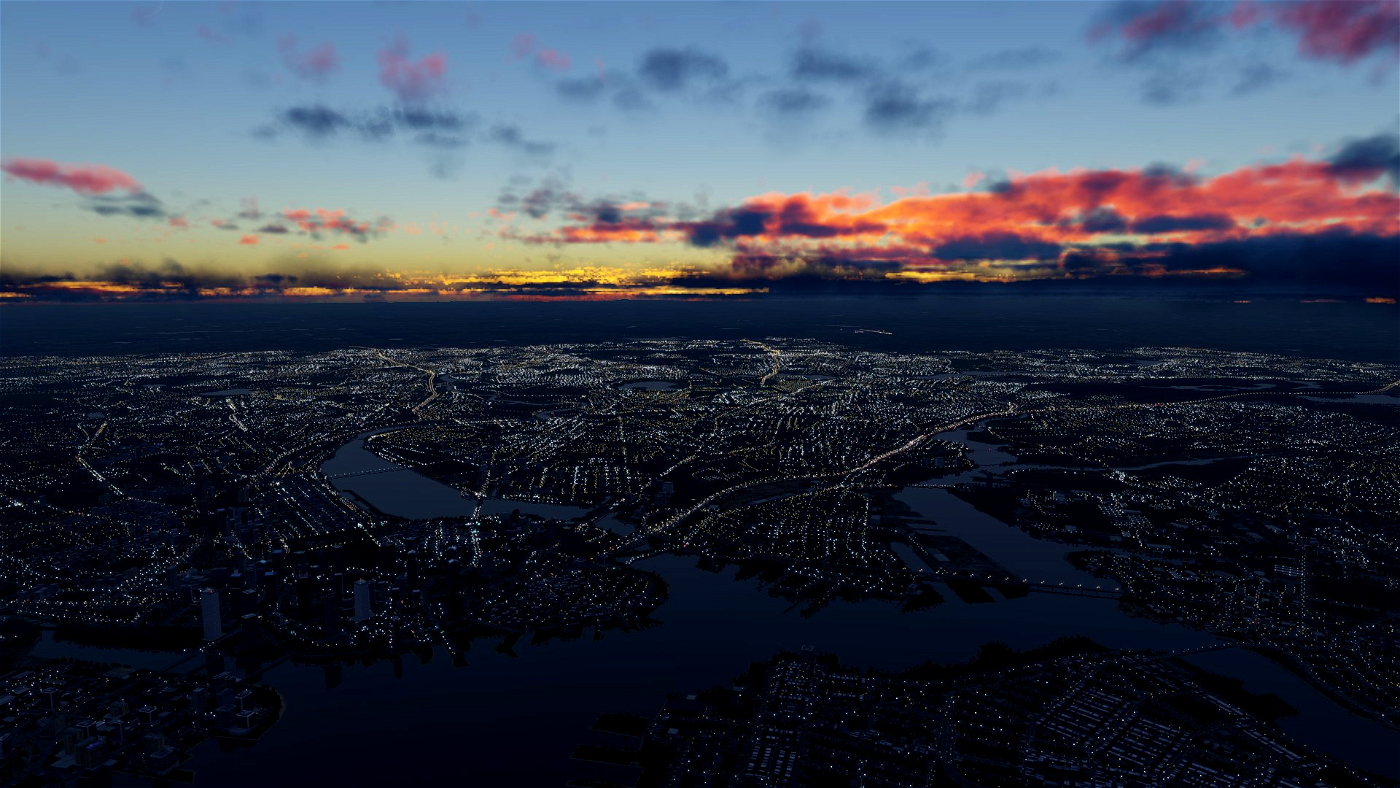
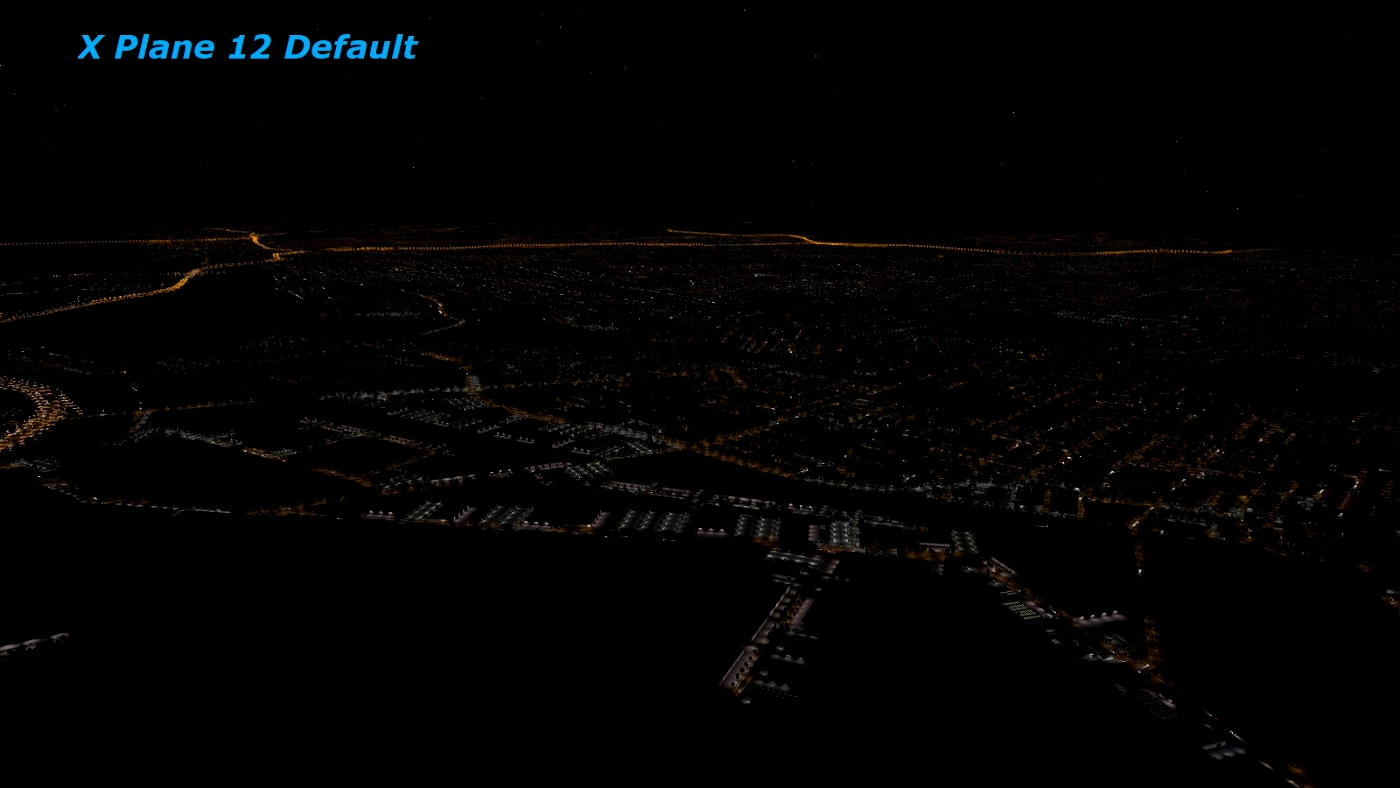
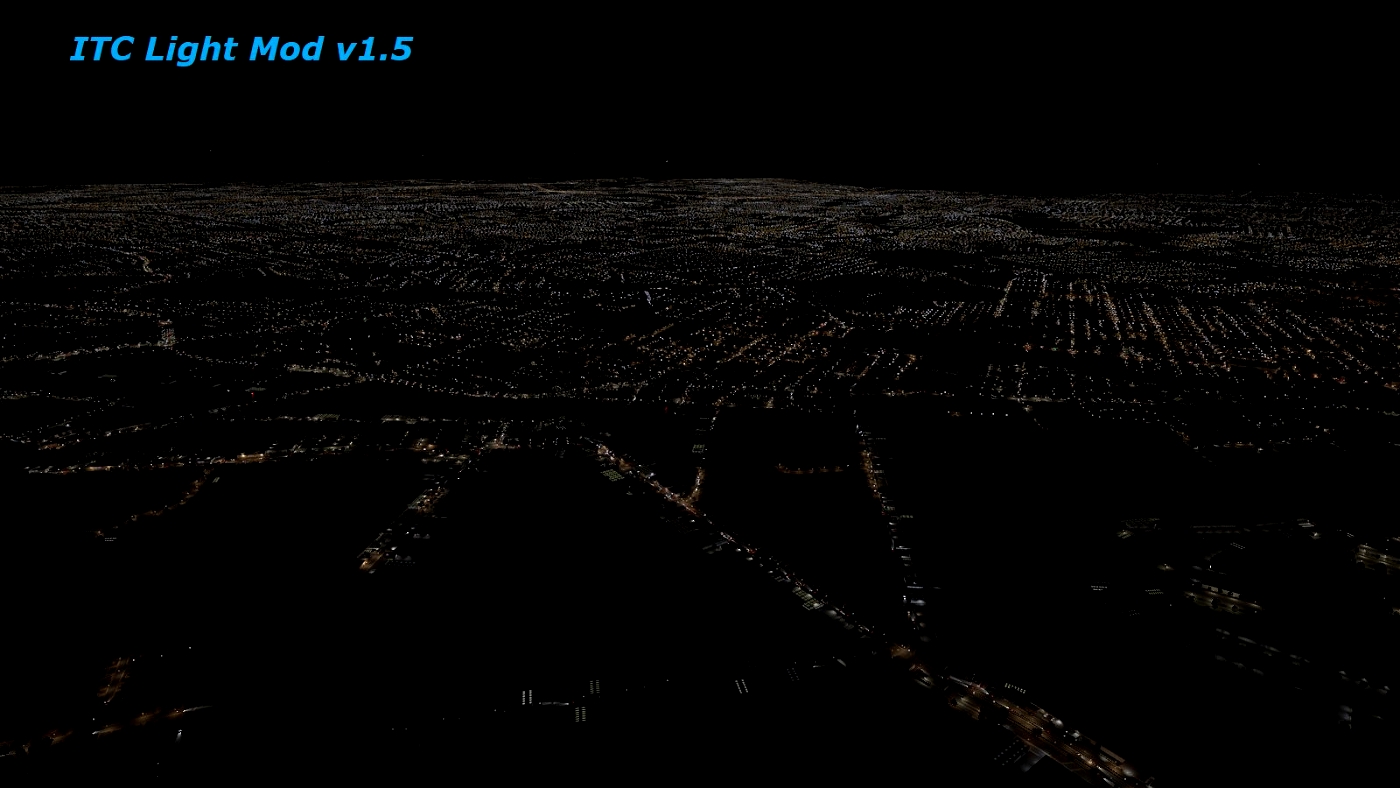
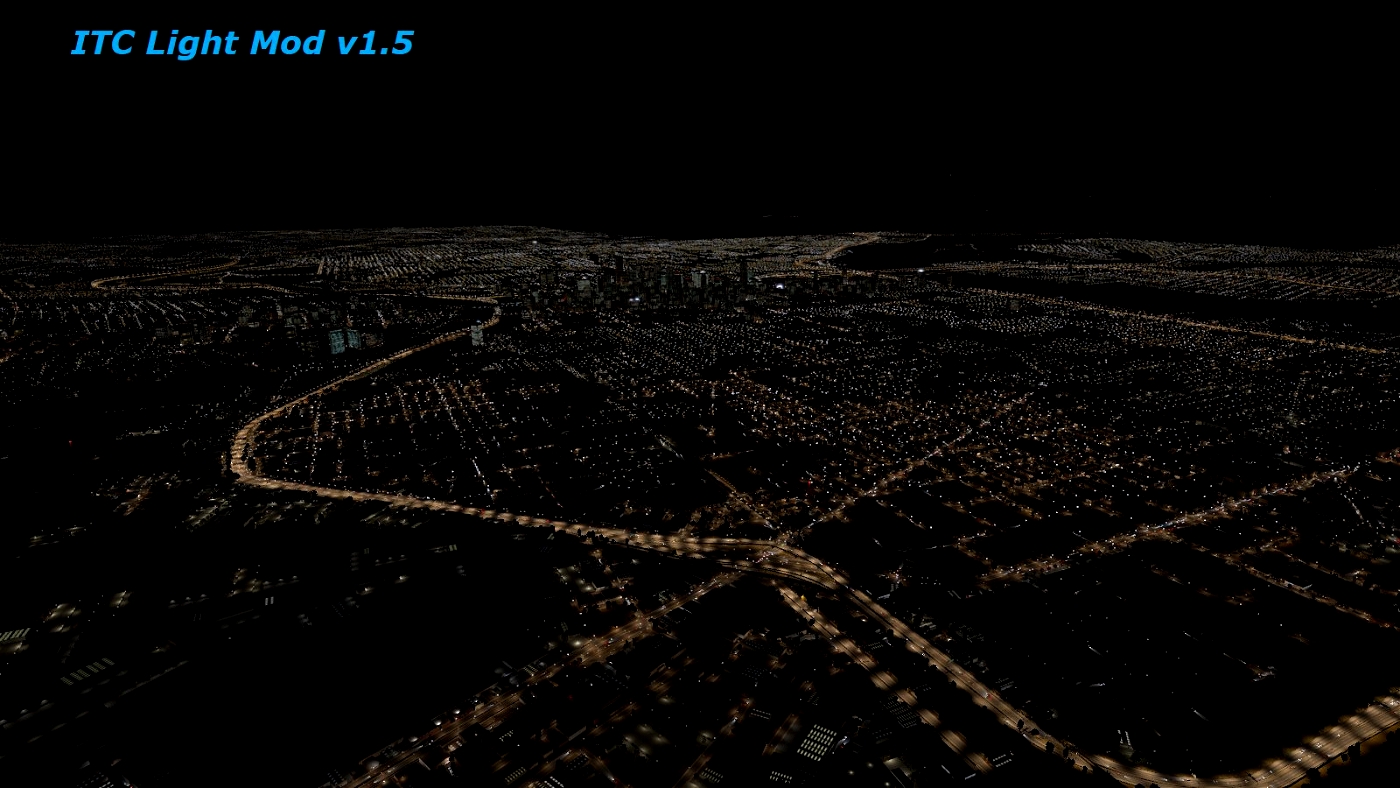
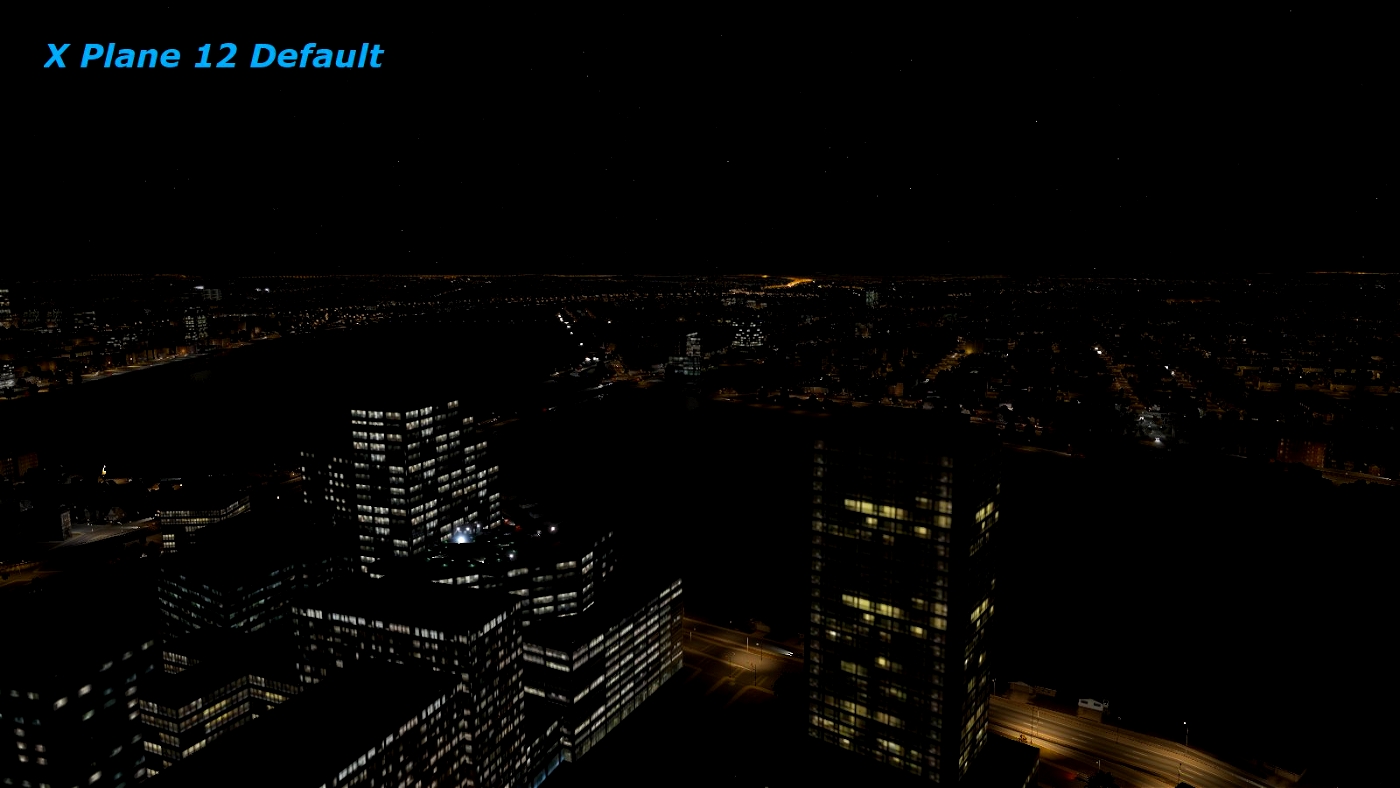
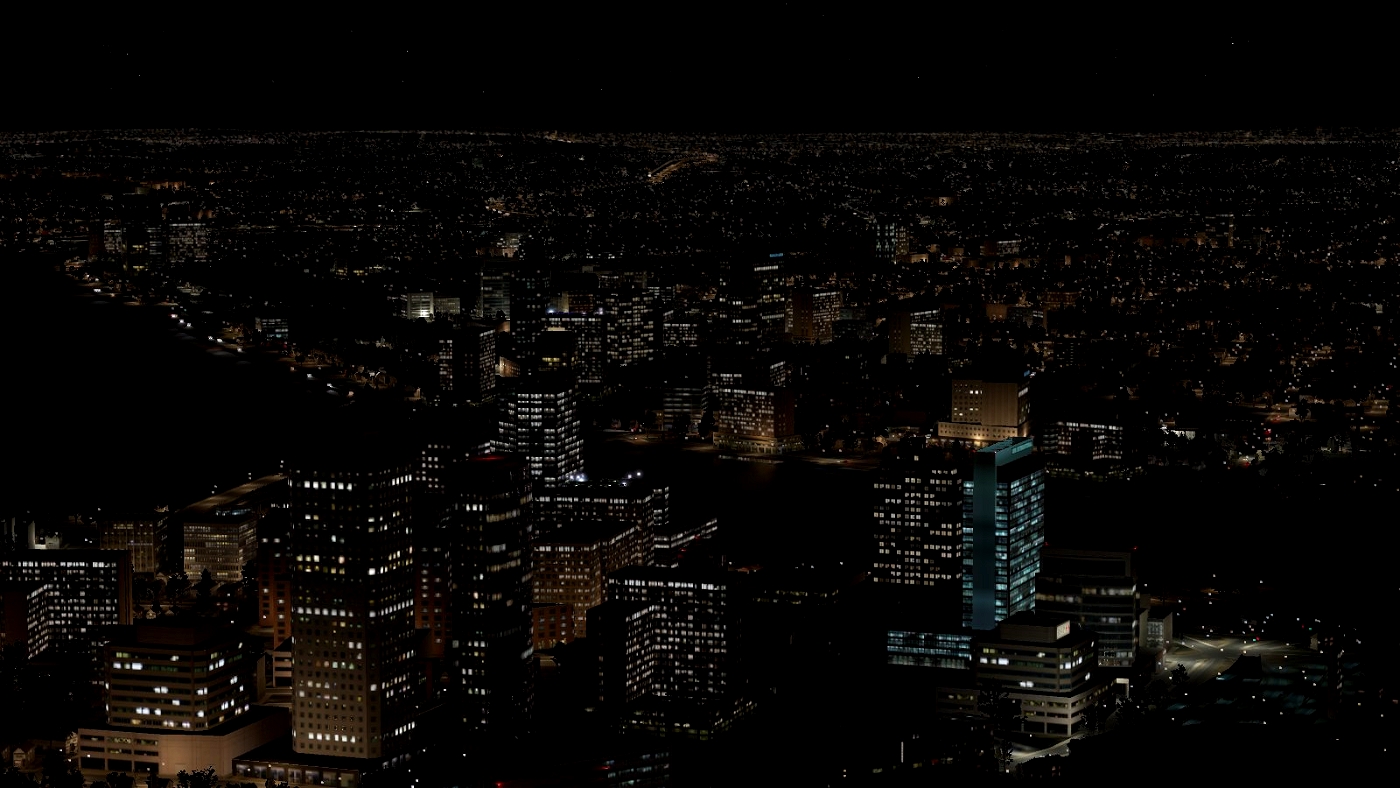
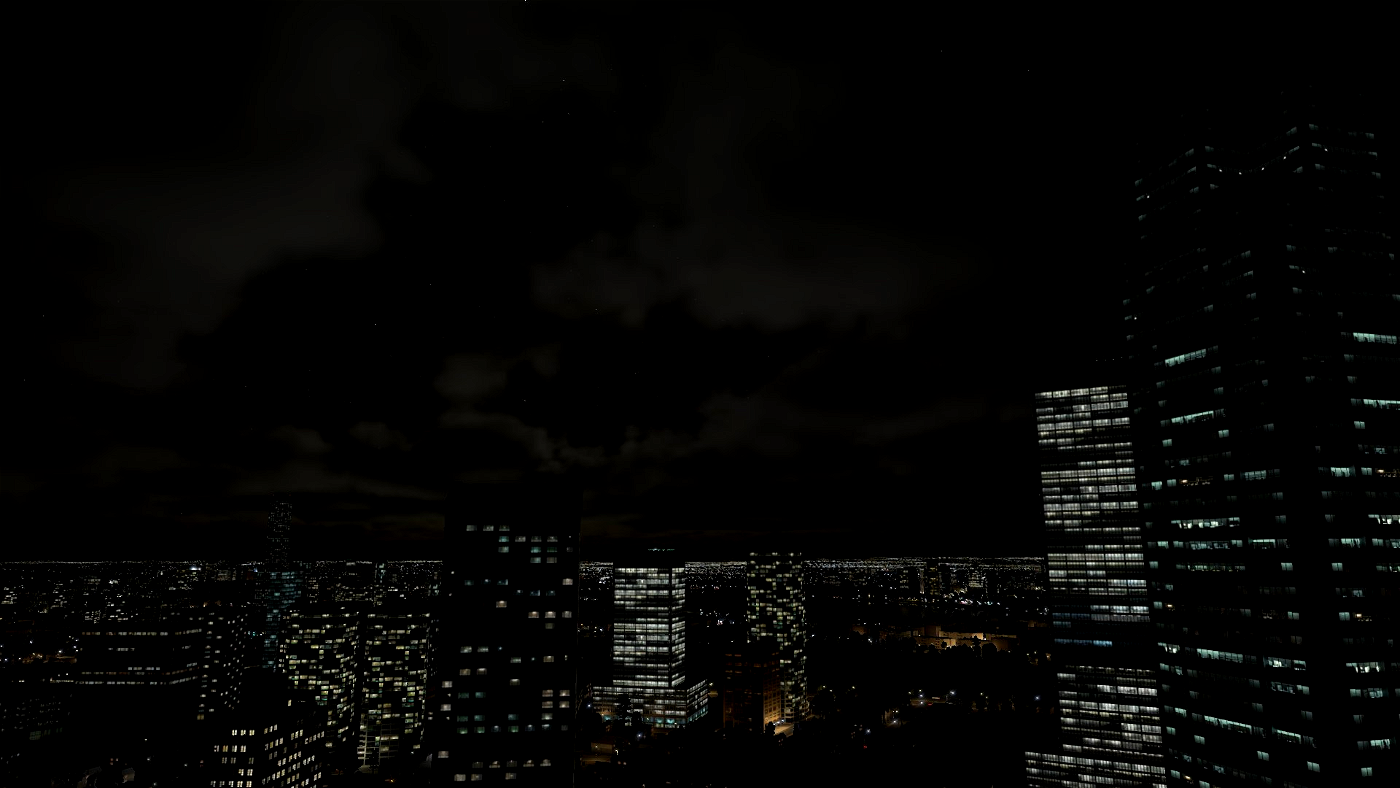
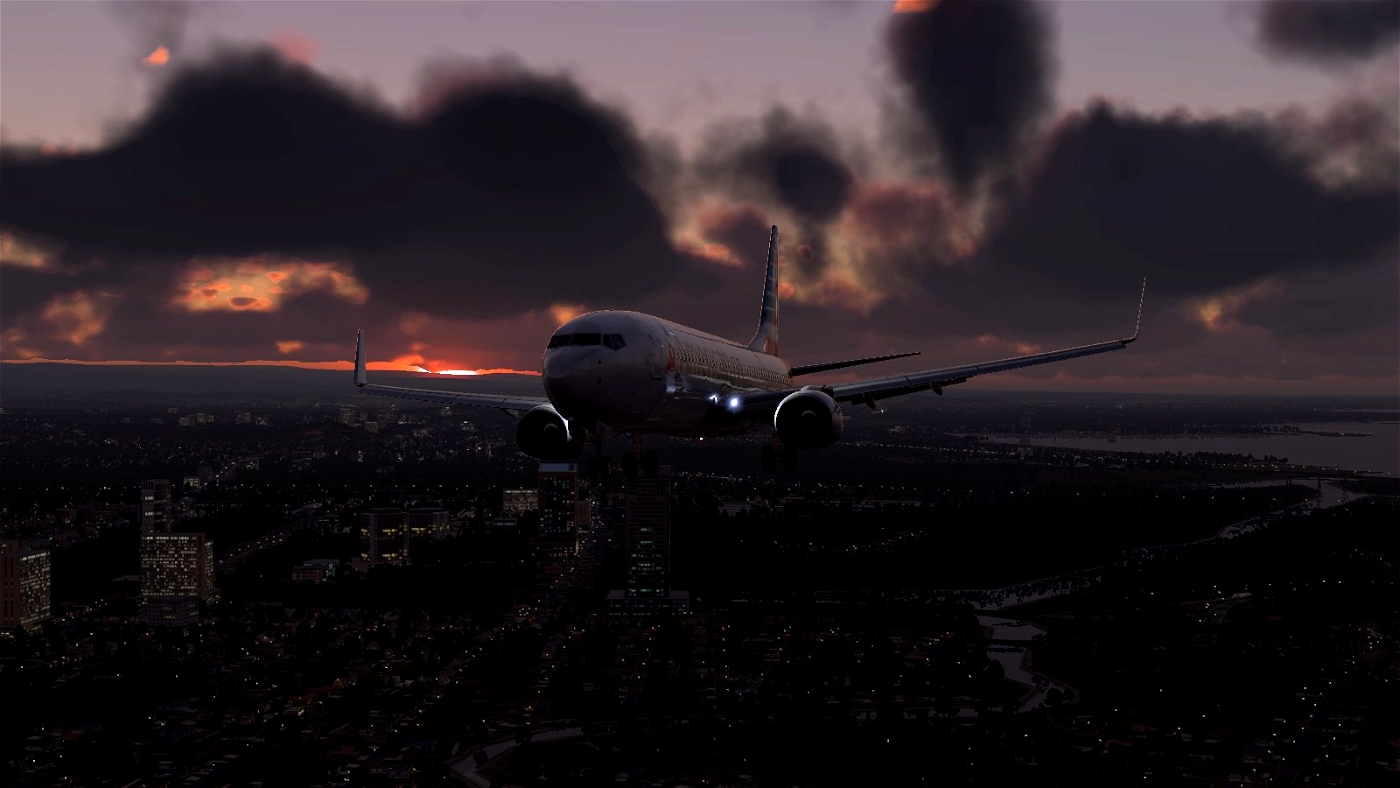
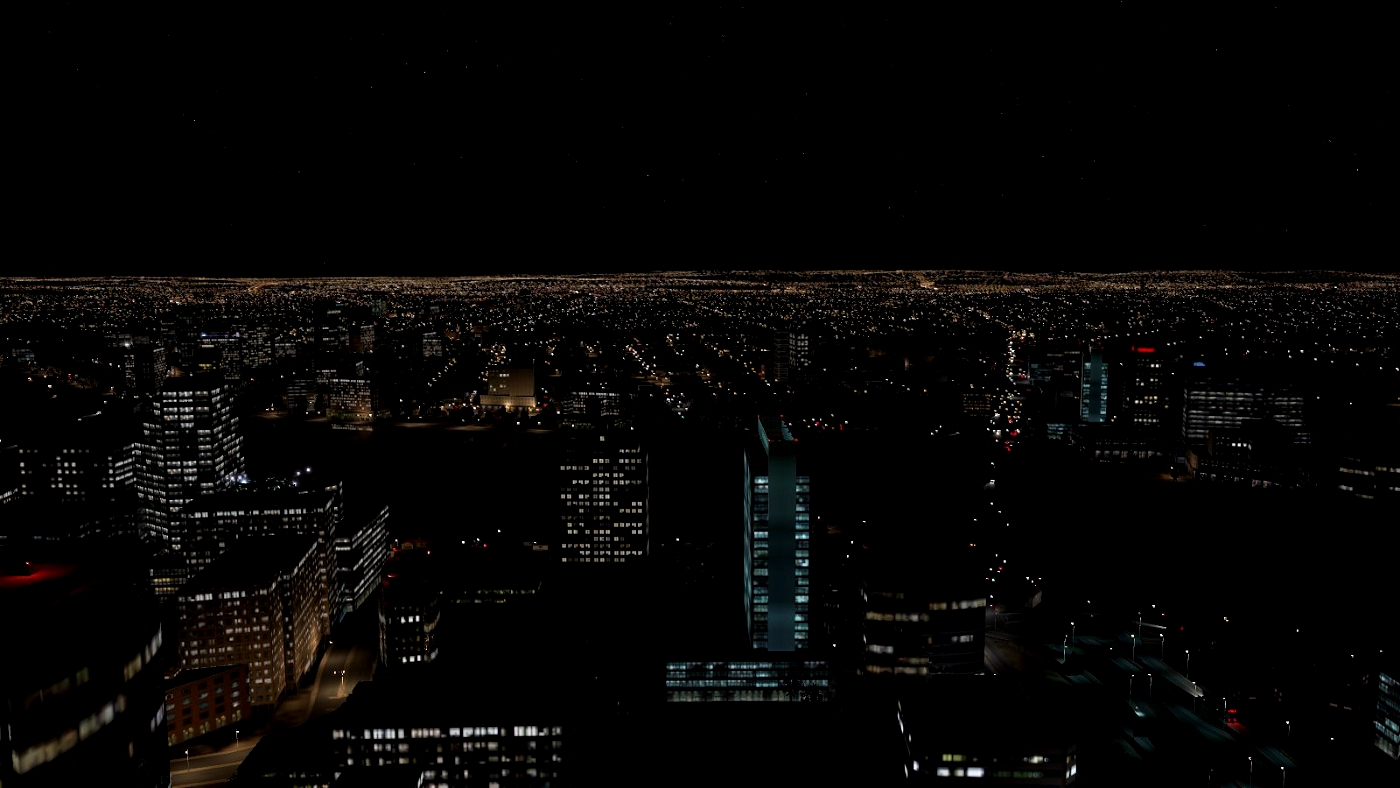
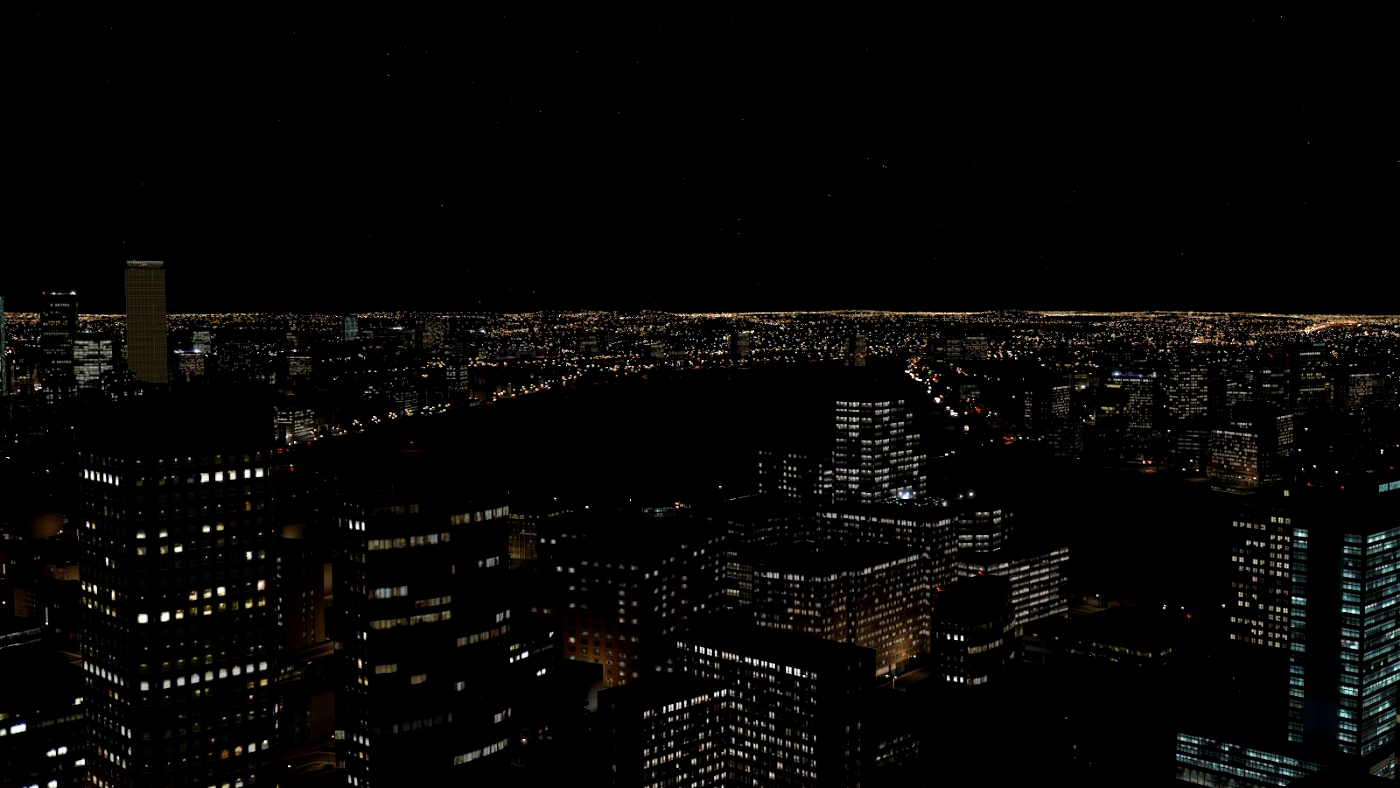
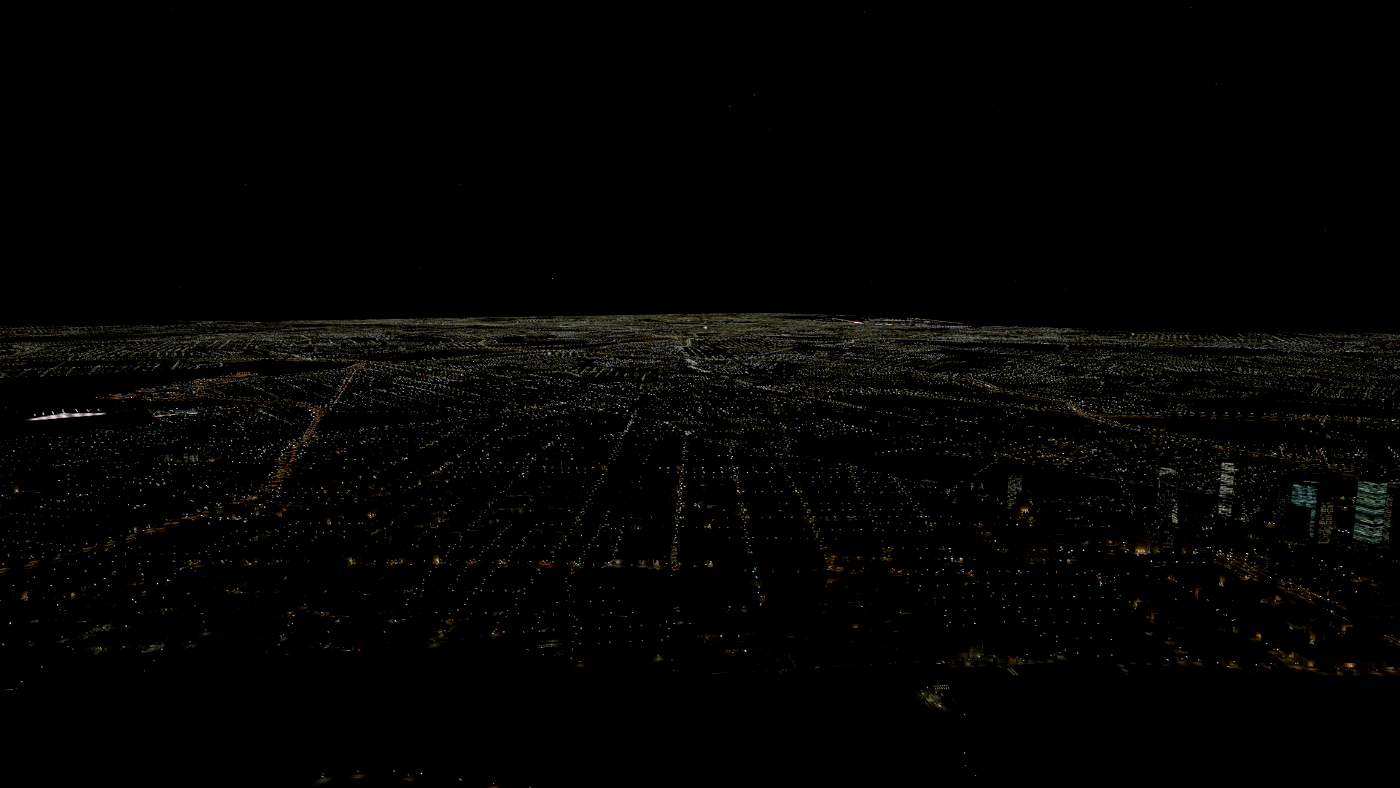
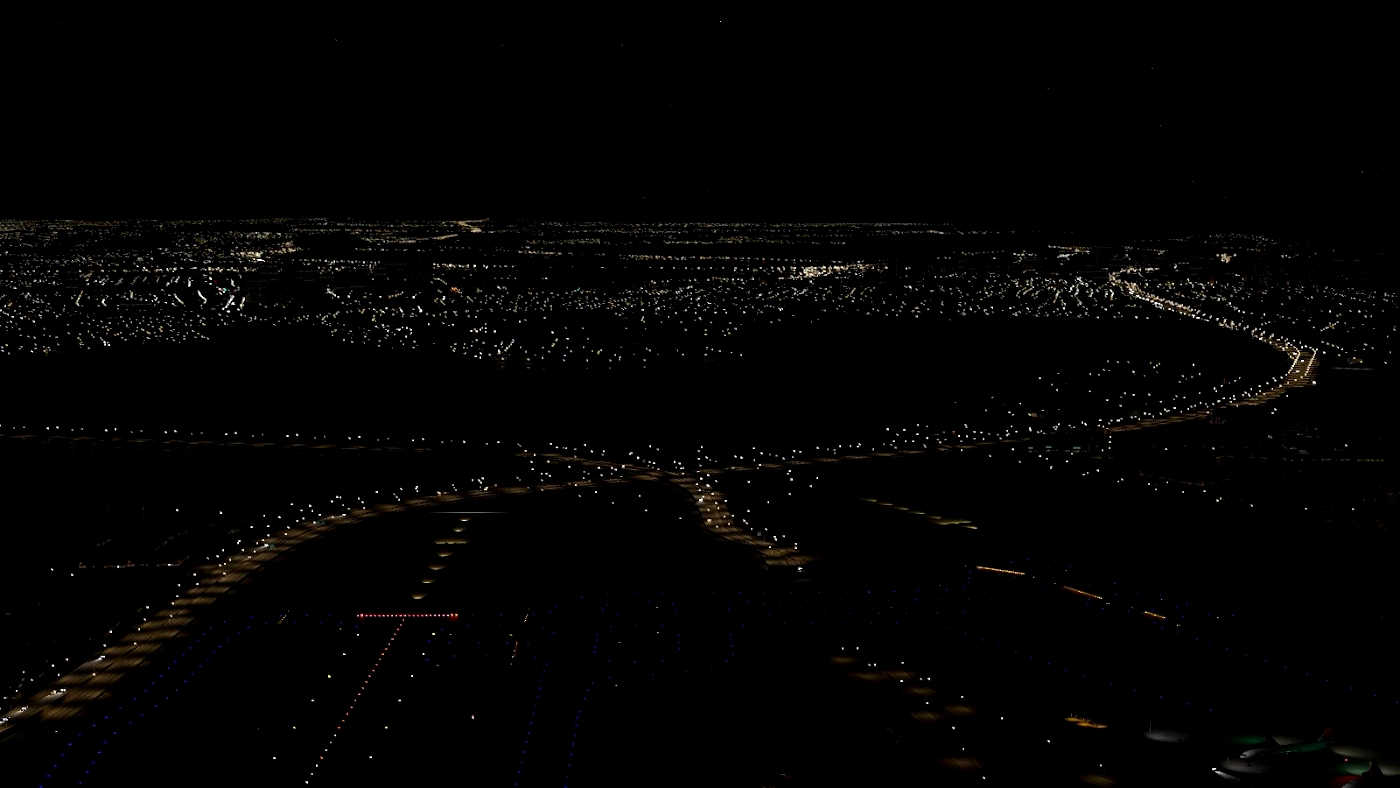
ITC allows you to customize X Plane 12's lighting and atmosphere. It also includes night lighting enhancements for a more realistic look.
Key features:
Adjust intensity of night lighting to suit your preference.
Adjust daytime lighting and atmosphere.
Kill 3D rain to help with performance/if you don't like it. (other rain effects remain).
Adjust intensity of night sky.
Enable/disable Volumetric Lights for great screenshots.
Save and load up to three presets, with keybind support (search ITC in keybind menu).
Adjust cloud size, scale, and shape.
Change color of far night lighting in real time.
The lua script is fully compatible with other light mods and default lighting.
--
A new file has been uploaded, which includes the ITC Installer for automatic installation. Please report any issues with the installer on here!
A new beta has been uploaded, ITC Light Mod EV 0.7 Beta. This is a beta version of ITC which is compatible with the Enhanced Visuals script for those who use it. Some features have been removed as they are handled by the Enhanced Visuals Script.
If you do not use the Enhanced Visuals Script, you should download ITC v3.0. ITC EV 0.7 was built by request for those who use Enhanced Visuals.
v3.0 has been released, likely the final feature update, compatibility updates will continue to exist. Thank you to everyone who has supported the mod with downloads. ITC has been a fun project and I hope it has enhanced your X Plane experience. As always, ITC is free and will remain free forever.
--
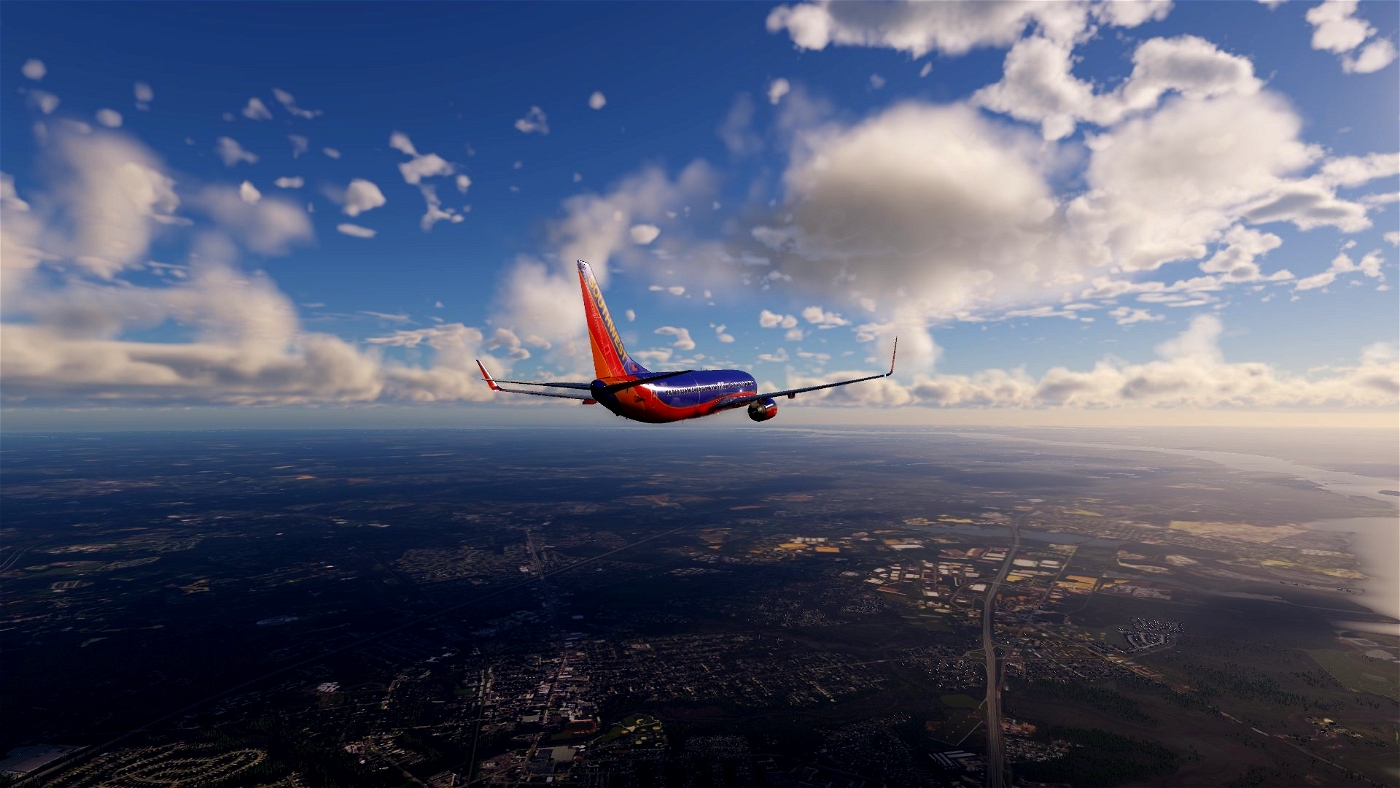
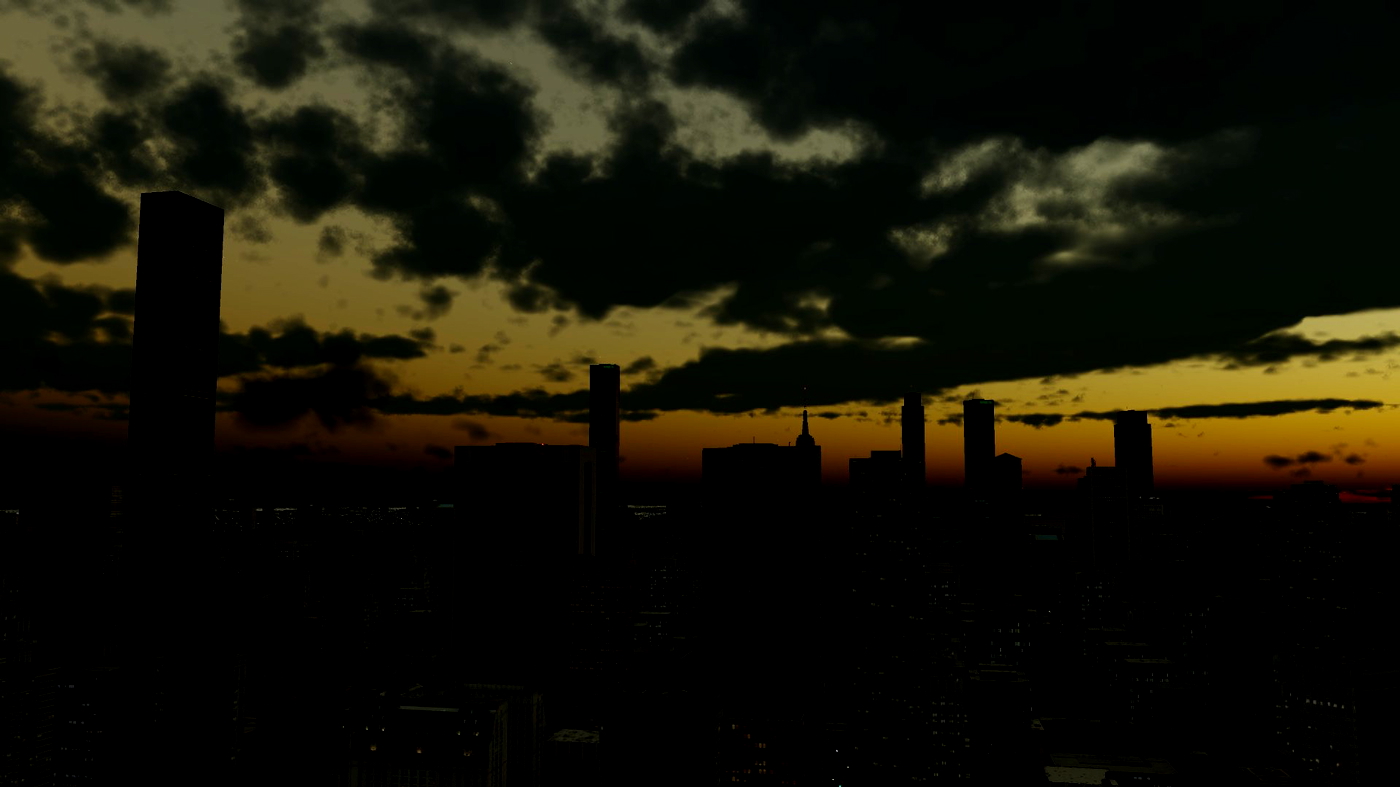
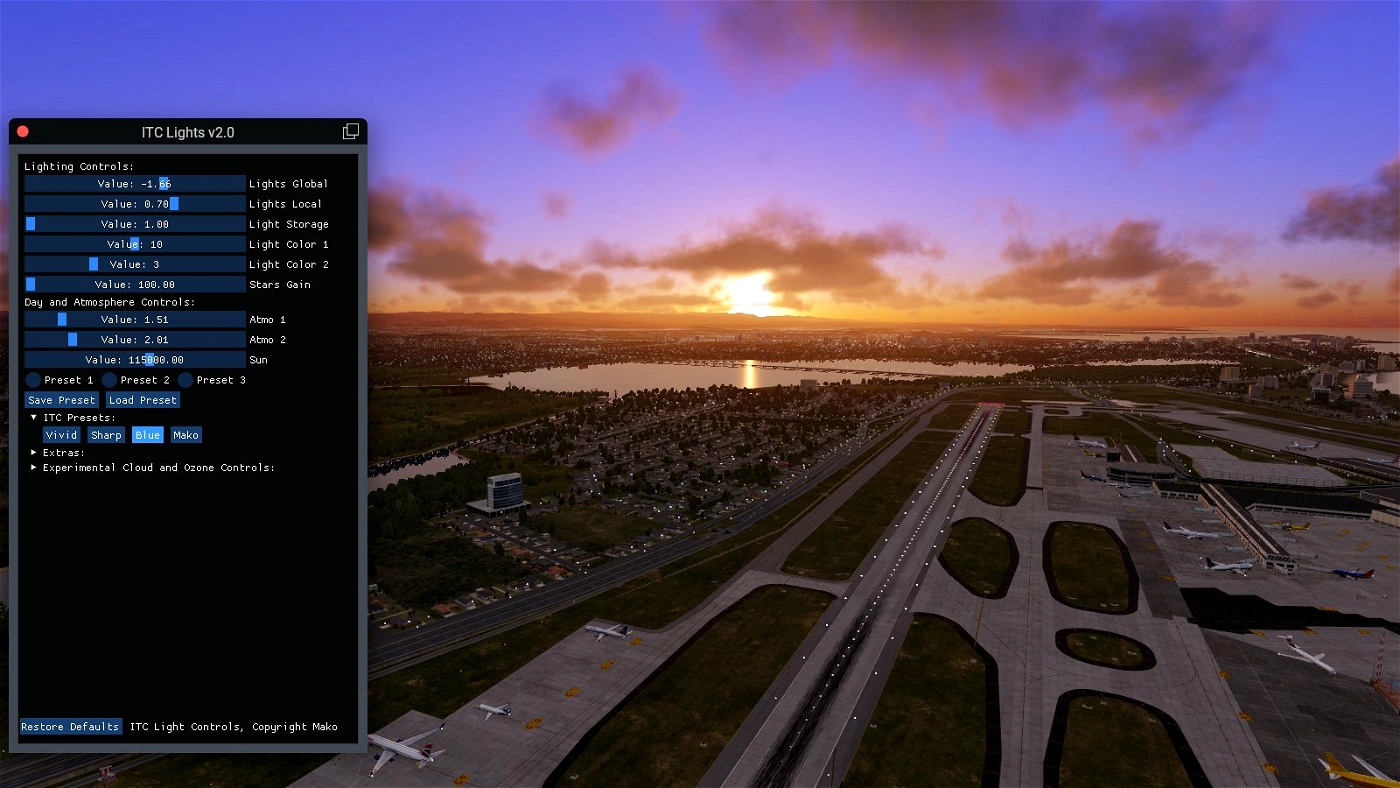
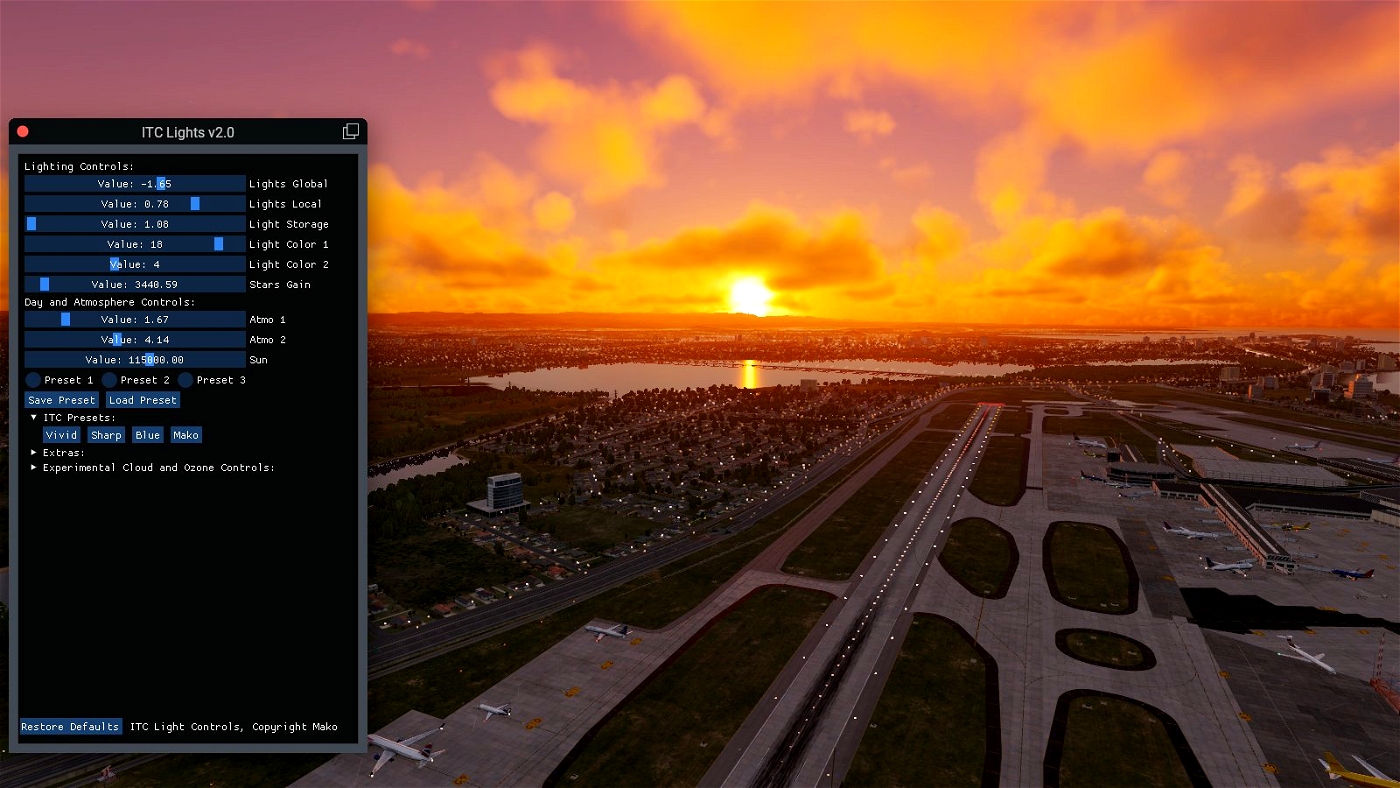
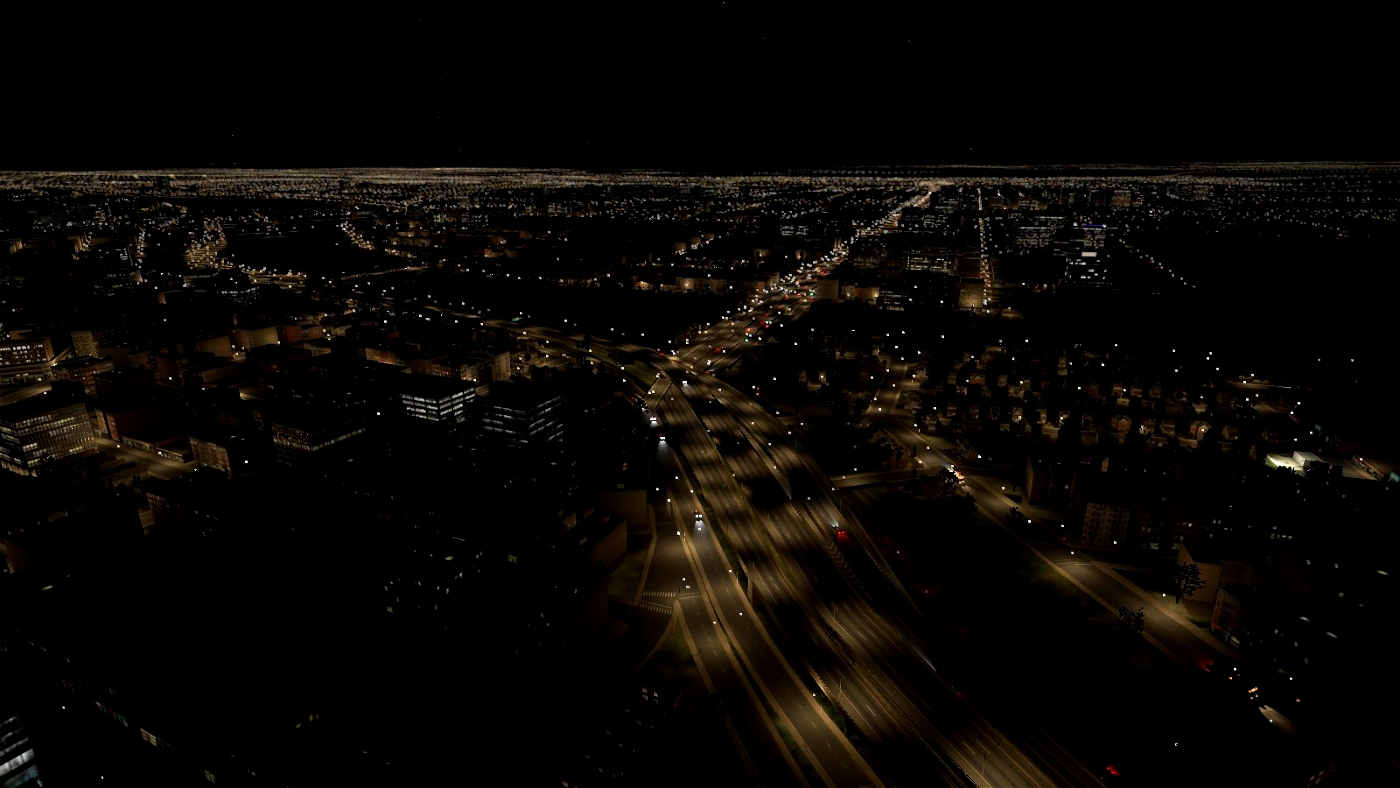
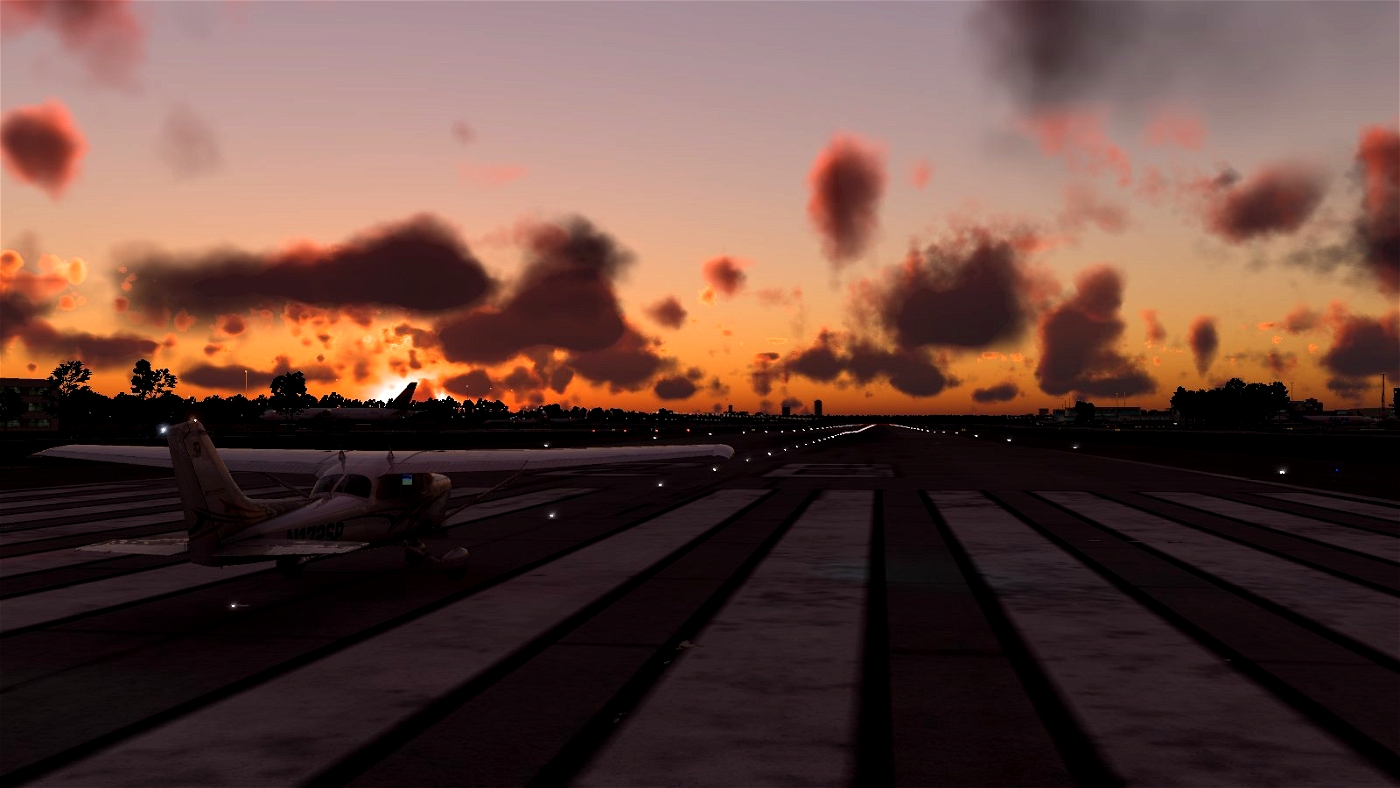
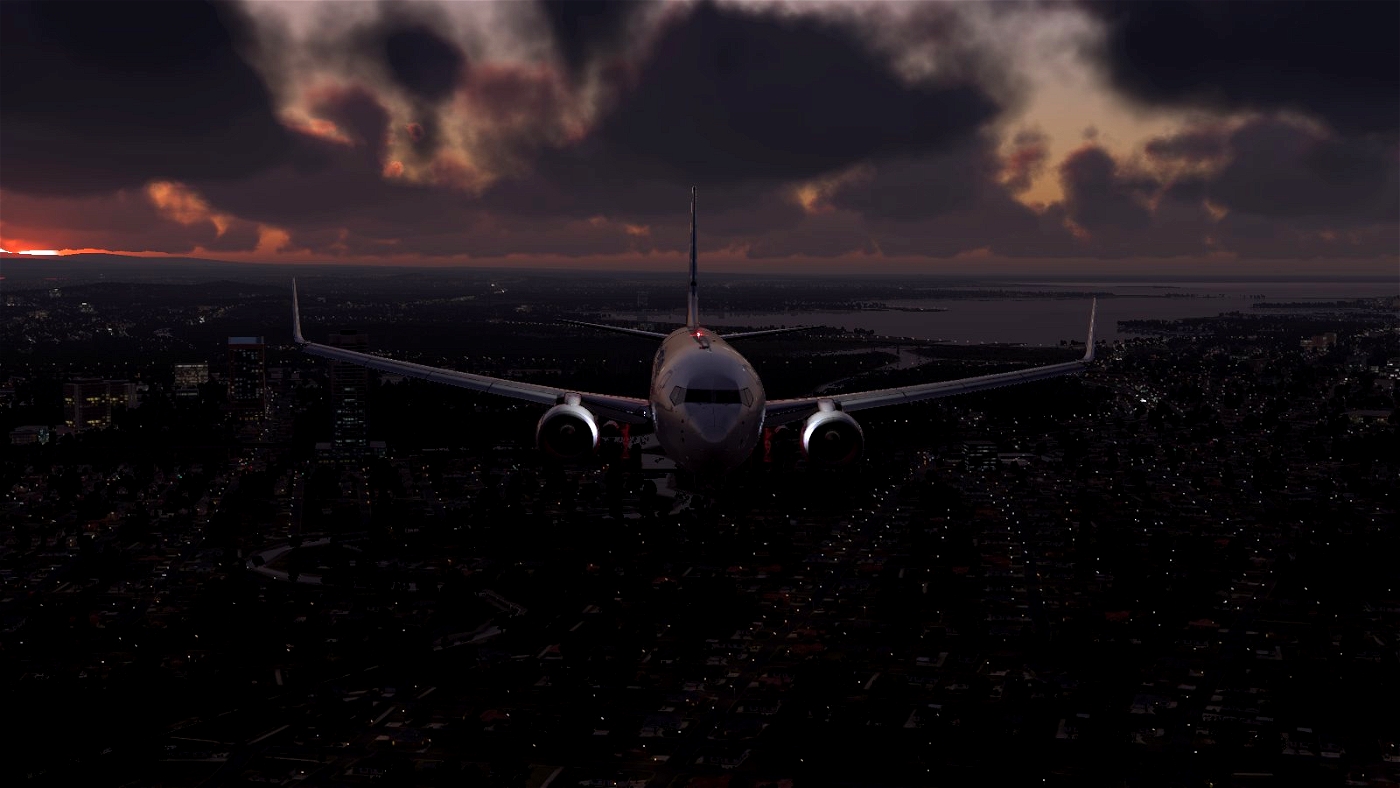
Note screenshots represent custom values (the mod is customizable), they're used to give an idea of what types of changes can be achieved. Find your own preset and use that!
The mod is versatile. You can use just the lights, just the lua script, your own lights, other light mods, or any combination. It's up to you.
Requires FlyWithLua NG for X Plane 12. Get it here:
How To Install:
Automatic Installation:
Open the ITCInstaller.exe. Select Continue and select the ITC folder you unzipped (name should be similar to ITC Lights v3.0_4RIil, it's the same folder the installer is in), press OK. Select Continue again and select your X Plane 12 *root folder*, which should be similar to:
C:\X-Plane 12 for standalone,
or C:\Program Files(x86)\Steam\steamapps\common\xplane12 for Steam users.
NOTE: Your X Plane 12 installation folder may vary. The installer will prompt you if it doesn't find the correct files.
Select the components to install (recommended selecting all), and click Install. The installer will copy the files to the folders for you and let you know if it was successful. The original lights.txt and 1000_lights_close.png will be copied to a backup folder called Lights Backup in your Resources\bitmaps\world\lites folder.
Manual Installation:
Extract the zip file and copy all lua, .itc, and the ITC Jetway Sounds folder to:
C:\X-Plane 12\Resources\plugins\FlyWithLua\Scripts
Go to C:\X-Plane 12\Resources\bitmaps\world\lites, make a copy of 1000_lights_close.png, and copy 1000_lights_close.png from the zip file to the C:\X-Plane 12\Resources\bitmaps\world\lites folder.
For the optional light changes:
Go to C:\X-Plane 12\Resources\bitmaps\world\lites and make a copy of lights.txt, then copy the files from the Optional Lights folder and paste them into the C:\X-Plane 12\Resources\bitmaps\world\lites folder.
For the optional urban far textures:
Go to C:\X-Plane 12\Resources\default scenery\1000 world terrain\textures12\urban_FAR and paste the files from Optional - Urban FAR.
--
Make a copy of default files prior to installing. If you have issues with the mod, you can restore default files:
On Steam, go to your Library, right click X Plane 12, select Properties>Local Files, and click Verify Integrity of game files.
On Standalone, go to your X Plane 12 folder and run the X Plane 12 Installer, click to Update, allow it to scan files, and when prompted, allow it to replace old files.
--
Launch X Plane and find it under Plugins>FlyWithLua>FlywithLua Macros>ITC Lighting Controls
To use preset keybinds:
Go to your keybind menu and search for "ITC." They may be at the bottom of the list. You can load presets without opening the ITC window.
To use the jetway sounds:
Search your keybinds for "ITC Jetway" and bind a key/key combo to that. Jetways will activate and play relevant sound files. Some aircraft have jetway sounds built in. In that case you can use the default keybind, "Service the airplane with Jetways." Choose your own keybind or use both, it's up to you.
To modify jetway volume, go to the Extra Options menu and set your desired volume level. Jetway volume is saved to your presets.
Note: Jetway sounds are compatible with default airport jetways. SAM and Autogate jetways play their own sounds and will not activate with the ITC Jetway keybind or the default keybind.
---------------------------------
I am the author of this script. This mod is free and always will be free, I will not accept donations. This tool is copyrighted, 2023-2024.

amgessawy
Actually the default sky color itself is perfect
it's gonna be better sir if you make a separate version of lights only with the same sky and clouds
Thanks again for the mod
amgessawy
Thanks for the Mod
but unfortunately I can't save any presets , it is not compatible with rxp enhancer mod.. I can save it only when I remove it
Can u make only light mod without the sky and clouds edit ?
typicalskeleton 2 month(s) ago
I've responded to your private messages with some things to try.
CaptainClyde
Download shows Error 404 File Not Found? Was it removed?
typicalskeleton 2 month(s) ago
Looks fine on my end. I've been getting reports of that periodically. Most likely an xplane.to server issue.
You could try a different browser, or perhaps just wait for a while and see if it comes back up.
xGeoff
Fantastic plugin! My favorite. Makes night flying more immersive. I can't seem to get Presets to save, however. I click Save Preset, and when i load it later its back to something else. Otherwise fantastic!
typicalskeleton 2 month(s) ago
Thanks for the review!
Would be happy to help with the presets. Sometimes you do have to restart the plugin/X Plane before the save works correctly, not sure why.
However an easy way to check if it is saving your parameters is to go to the FlyWithLua/Scripts folder and open the preset.itc file with something like Notepad. You should be able to see if the parameters have changed/match your settings.
xGeoff 2 month(s) ago
i'll try that. thank you!
hectopascall
Hello, amazing mods esp with volumetric lights with minor fps impact, it would be amazing if i know how to keep the default xplane colors, can you please tell me how can i use default skycolors and cloud colors while using this mod?
typicalskeleton 3 month(s) ago
ITC does not change sky colors, unless you use the ozone controls. Are you using your own preset or one of the built in ones?
Also, thanks for the stars and kind words!
hectopascall 3 month(s) ago
well i dont know exactly if its ozone or sky colors, but i mean the sunset/sunrise and i want to disable that, how do i do it? and i also love the bright clouds at night during approach
typicalskeleton 3 month(s) ago
When you load into X Plane, don't select any of the ITC Presets, don't change any of the ozone controls, and don't modify Day and Atmosphere controls. These settings may make the sky and/or cloud lighting look different.
Light Controls change the night lighting only, nothing during the day. Under Extra Options there is also the moon lighting slider, which is what makes the clouds more visible at night.
Once you've adjusted the settings to your preference, click to save a preset and use that.
hectopascall 3 month(s) ago
Can you please add me on discord and help me do it there? i did like u said, i opened the itc panel without touching anything and it automatically applied the ozone and cloud colors
Emidblol
Causes crash upon loading. Toliss A320Neo
typicalskeleton 3 month(s) ago
Can you tell me what's at the bottom of Log.txt right after the crash?
cocofedor
hello. Im really loving this but i got some issues. first is the same as the other guy said, when we try to increase global ligts the airport lights also increase and gets too exaggerated. also, i loved the volumetric lights feature but it may seem a bit weird when its turned on and we re not inside clouds, ex on runway, seems like the lights are in clouds but visibility and ceiling are good, no fog. also with volumetric lights the cockpit windshield gets kinda blurred when landing lights are on. in night flights it might be bad for visibility, i guess itd be cool if it happened only inside the clouds. but i can live with those things, but whats really annoying for me is everytimg i get in a new flight i gotta open up the itx menu so the preset will work, otherwise itx wont work.
typicalskeleton 4 month(s) ago
Are you using the included lights.txt with this? I'll look into the airport lights however I don't see that issue on my end.
The volumetric lights here (and in all other similar mods) are simply "turning on" an incomplete feature already found in X Plane. I believe LR intends to implement it officially at some point after some more work. Unfortunately right now it will appear the way it does, and I can't change that. It can still give you some cool imagery and, especially, screenshots.
Thanks for the stars, though!
oskar28
doesnt work. It doesnt show up in my flywithlua menu
typicalskeleton 4 month(s) ago
Nine times out of ten this is caused by a conflict lua script. Are you running any other lua add ons?
oskar28 4 month(s) ago
yes it shows now buit when i want to start it there is a green m essage at the top
typicalskeleton 4 month(s) ago
What is the message?
Sillo18
It's buggy during low visibility operations. Showing like circle like halos when using lights through clouds
Joneva
Best light tweaker for XP12. Just want to have individual option to adjust brightness of RWY lights. Because when I increase global lights, RWY lights increase too, and city lights look like normal, but RWY lights become bigger in size, then it should be
typicalskeleton 5 month(s) ago
gonna take a look at this when I get a chance.
fernandooeric
Cant save any preset I made. Installed exactly as informed, using FWL for nothing else but this. Clean xpl installation, so I can tell u thats a addon issue.
typicalskeleton 6 month(s) ago
Hey, maybe give me a chance to help ya out before you drop the stars.
If you could save a preset in X Plane, then go to the FWL scripts folder and open the presets1.itc file with a text editor (like notepad), you can check if the values have been changed.
If they have, then it is saving the preset correctly. It's possible there are permissions issues, anti virus/anti malware, or some other issue. I'd like to help you resolve the issue as ITC uses standard Lua read/write functions to save the settings.
Joneva 5 month(s) ago
installed just today, all presets save correctly
fernandooeric 5 month(s) ago
I doesnt change anything looking on scripts, still not saving. I dont use antivirus, also every win possibility of excluding or denying files access are down, win defender off, firewall off, net user admin yes, xpl hd are all free of any protection conflict. FWL up to date.. sorry for the stars its a personal issue wt anything that I have to set up again on every single time I open the xpl12, drives me mad lol.
typicalskeleton 5 month(s) ago
The values in the presets.itc files are not changing? Then it is having issues writing to those files.
Anything else different about your X Plane? Is it installed on a separate drive? Are the presets files in the FWL Scripts folder? Running any other lua scripts or add ons?
johnbla
Hi typicalskelton, really loving your mod. I use it every flight to increase airport lights in distance. I was just wondering what dataref you use for airport lights brightness as I was trying to use my new Streamdeck Plus to increase airport lights brightness with the rotary encoders using XKeyPad. Many thanks for any help. John
typicalskeleton 6 month(s) ago
sim/operation/override/override_airport_lites
sim/graphics/scenery/airport_lights_on
sim/graphics/scenery/airport_light_level
johnbla 6 month(s) ago
Many thanks typicalskelton.
imperativeoz
Does this also work using VR?
typicalskeleton 8 month(s) ago
Yes, it is fully compatible with VR. Tested on Oculus 2 and HP Reverb.
efsenable
Please help if possible.
Thanks in advance.
typicalskeleton 8 month(s) ago
Will look into and get back to you. Thanks for reporting the issue!
typicalskeleton 7 month(s) ago
I did some testing on v3.0 using Preset 2. The ozone shaders did save and load correctly for me. Can you tell me more about what's going on?
Maupilot81
Great mod, but some street lights do not light up the ground. please check and fix it!
typicalskeleton 8 month(s) ago
This is by design. However, if you want light spills on all lights (which I believe is not entirely realistic), I can create a version for that.
Maupilot81 8 month(s) ago
Oh thanks! I will appreciate it!
typicalskeleton 8 month(s) ago
There are other, excellent night lighting mods on here too. ITC is compatible with them. You could try them out to see if the night lighting is more to your preference.
HornetAircraft
Mod doesn't work with 12.06 betas. just quarantines the script.
typicalskeleton 8 month(s) ago
Will look into it. Thanks for reporting the issue.
typicalskeleton 8 month(s) ago
I've just tested it with the latest beta and it is working correctly.
If it's being quarantined it usually means there's a conflict with another Lua script. You can check FlyWithLua_Debug in your X Plane folder to see what caused it to be quarantined.
You can also email the log to [email protected] if you'd like me to look for you.
HornetAircraft 8 month(s) ago
hmm ok.
the flywithlua debug file hasn't been touched by X-Plane for a while. the only scripts I have currently are LFD Auto View distance, Simple Ground Service and Enhanced Visuals which changes the sky colors to the accurate style
typicalskeleton 8 month(s) ago
It's conflicting with Enhanced Visuals. Unfortunately the two are not compatible. ITC does allow you to make some of the same changes as EV, but if you prefer that one then I would recommend not using ITC.
airfighter
You are welcomed @typicalskeleton!
Happy to see my work being improved and updated!
Ilias Tselios
typicalskeleton 9 month(s) ago
Happy to hear from you. Thank you for giving me the the inspiration to learn FlyWithLua.
trevog
How do I keep the settings when restarting XP? I always have to adjust the settings again after restarting x-plane. Also for me the "Save preset" and "Load preset" function doesn't work for me. Other than that, it's amazing, I love the blue preset!
typicalskeleton 9 month(s) ago
That's odd.
Can you tell me if you have the preset1, 2, and 3 files in your FlywithLua/Scripts folder? ITC Light Mod should also build the files if they aren't present.
trevog 9 month(s) ago
The files are there. The date for changes in the file also changes when I press Save Preset. For e.g. I saved my settings on Preset 1. Then I switch to Preset 2 and press Load Preset. When I go back to Preset 1 and press Load Preset, the settings are not the ones I had, when I last pressed Save Preset for Preset 1. Maybe there could be a conflict with an addon?
typicalskeleton 9 month(s) ago
Sorry for the delayed response, had some real life obligations.
Thanks for completing that troubleshooting step, as that would have been my next question.
I would suspect either a conflict with another Lua script, or even possibly anti-malware/antivirus software preventing the files being loaded.
trevog 9 month(s) ago
No problem we all got something to do. I will try to check my lua scripts and antivirus
kelvinzzz
How do I install ITC JETWAY SOUNDS into xplane 12. Thanks
typicalskeleton 11 month(s) ago
Copy the ITC Jetway Sounds folder to your Flywithlua/Scripts folder.
In X Plane, bind a key to "ITC Jetway" in the keybind menu. Note they only activate default jetways. SAM and Autogate jetways are automatic.
moheeb
Is there is a way to not change the skycolors?
I really love the lights in this tweak but I prefer the default xp12 sky colors at dawn or dusk. is it possible to only edit the night lights without changing the skycolors?
typicalskeleton 11 month(s) ago
ITC Light Mod does not change X Plane sky colors unless you're using the day/atmosphere or ozone sliders.
If you want to change only the night lighting, use the Lighting Controls and don't make changes to the day/atmosphere or ozone.